The Best Monitor for Working From Home
A laptop screen is fine for scrolling and answering emails. But if you spend six, eight, or ten hours a day working from a home office, that cramped 13-inch display becomes a bottleneck — for your productivity, your posture, and your sanity. The right external monitor is one of the single biggest upgrades you can make to your remote work setup.
The problem is that "best monitor for working from home" returns thousands of options, from budget office panels to ultrawide behemoths built for gamers. What you actually need depends on your work, your desk space, and whether you're rooted at home or occasionally packing up to work elsewhere.
This guide breaks down what really matters, which monitors are worth your money in different categories, and the mistakes that trip up first-time buyers. By the end, you'll know exactly what to look for — no jargon overload required.
What to Look For Before You Buy
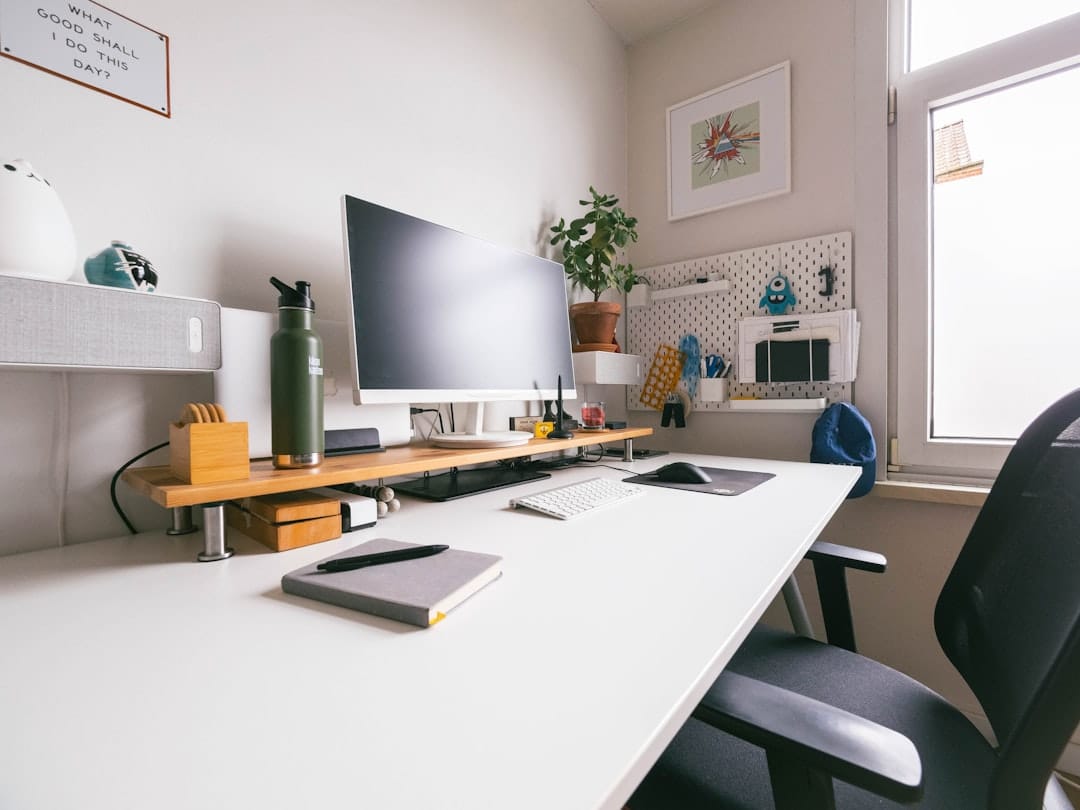
Screen size and resolution are the two specs that matter most. For general office work, a 27-inch monitor at 1440p (QHD) hits the sweet spot: enough real estate for two windows side by side, crisp text, and a price that won't make you wince. A 24-inch 1080p panel is perfectly serviceable on a budget, while 4K becomes worthwhile at 27 inches and above if you edit photos, video, or stare at text all day and want razor-sharp rendering.
Panel type is the next thing to check. IPS panels give you the best colour accuracy and viewing angles, which is why they dominate the work-from-home category. Refresh rate — the headline spec for gamers — matters far less for spreadsheets and video calls; a standard 60Hz is fine, though 75Hz or 100Hz feels marginally smoother when scrolling. Don't overpay for 144Hz unless you also game.
Finally, look at connectivity and ergonomics. A monitor with a USB-C port that delivers power and video over a single cable can charge your laptop while displaying its screen — a genuinely tidy setup. And an adjustable stand that tilts, swivels, and raises to eye level is worth more to your neck than any fancy display tech. If the included stand is basic, budget for a VESA monitor arm.
The Best All-Round Monitor for Most People
The Best All-Round Monitor for Most People
For illustration, here's how three hypothetical top-performing monitors might compare across key work-from-home criteria.
| Feature | Dell S2721DGF | LG 27UP550 | ASUS ProArt PA279 |
|---|---|---|---|
| Screen Size | 27" | 27" | 27" |
| Resolution | 1440p | 4K | 4K |
| USB-C with Power | Not included | Available | Available |
| Blue Light Filter | Yes | Yes | Yes |
| Price Range | $300–$350 | $500–$550 | $650–$700 |
| Best for Remote Work | Recommended | Content creators | Photo professionals |
Illustrative figures — composed for shape, not sourced
If you want a single recommendation that covers 90% of home workers, reach for a 27-inch 1440p IPS monitor with USB-C. Models like the Dell UltraSharp U2723QE, LG's 27-inch UltraFine range, and the BenQ PD2705Q sit in this bracket. They deliver accurate colour, comfortable text, and enough desk space for real multitasking without demanding a monster of a graphics card to drive them.
The USB-C hub feature is the quiet hero here. Plug in one cable and your laptop charges, your monitor lights up, and any peripherals connected to the monitor's built-in USB ports come alive too. For anyone who docks and undocks a laptop daily, this cuts the morning cable ritual down to a single click — a small thing that pays dividends over months of use.
Expect to spend somewhere in the mid-price range for a quality panel in this class. It's not the cheapest option, but it's the one you're least likely to outgrow. Pair it with a good chair and thoughtful lighting — and if you want to go further, the psychology of your home office colours can nudge your focus in the right direction too.
Enjoying this? Get more like it.
Weekly picks for remote workers and digital nomads — tools, destinations, and honest takes, straight to your inbox.
Subscribe free →
Ultrawide, Budget, and Portable: Picks for Every Situation
For the ultrawide crowd, a 34-inch 21:9 curved panel replaces a dual-monitor setup with one seamless surface. It's ideal if you juggle spreadsheets, code editors, or timelines that benefit from horizontal space — no more bezel splitting your workspace down the middle. The trade-off is desk depth and price, so measure before you commit and make sure your laptop can actually drive the resolution.
On a budget, a 24-inch or 27-inch 1080p IPS monitor from ASUS, AOC, or Samsung gets the job done for a fraction of the cost. You lose some sharpness at 27 inches on 1080p, but for calls, documents, and browser-based work it's more than adequate. This is the smart entry point if you're just setting up a home office and want to prove out your setup before splurging.
And if you split time between home and the road, a portable USB-C monitor changes the game. These slim 15-inch panels weigh under a kilo, fold flat into a laptop bag, and power off a single cable — giving you a dual-screen workflow in a coffee shop or a co-living space. They're not as bright or as colour-accurate as a desktop panel, but for productivity away from your main desk they're a genuinely useful tool.
Common Mistakes That Cost You Money and Comfort
The most common mistake is chasing specs you'll never use. A 240Hz gaming panel or an HDR-1000 professional colour reference monitor is overkill for email and video calls — you're paying for performance that never touches your workflow. Buy for the work you actually do, not the setup you saw in a YouTube thumbnail.
The second mistake is ignoring ergonomics until your neck starts complaining. If the top of your screen isn't roughly at eye level, you'll spend hours craning downward. Cheap monitors often ship with tilt-only stands, so factor in a monitor arm or a stand upgrade from the start. Your future self, several months and thousands of hours into the setup, will thank you.
Finally, don't forget to check what your laptop can actually output. A 4K monitor won't run at full resolution and refresh if your laptop's port can't push it, and some older machines cap out below what you'd expect. Verify port types and bandwidth before you buy — and remember that a great monitor is only one piece of a healthy setup. Managing screen time and taking real breaks matters just as much for avoiding remote work burnout.
How to Set Up Your Monitor for Maximum Productivity
Once your monitor arrives, spend ten minutes dialling in the basics. Set the display to its native resolution, position the top edge at or slightly below eye level, and keep it about an arm's length away. Drop the brightness to match your room rather than blasting it at maximum — a screen that's far brighter than its surroundings is a fast track to eye strain and headaches.
If your monitor has a blue-light or eye-care mode, enable it for evening work, and consider warming the colour temperature after sunset. Many panels also include flicker-free technology that reduces fatigue during long sessions. These settings are quietly buried in the on-screen menus, but they make a real difference over an eight-hour day.
Then think about the workflow around the hardware. Use split-screen or window-snapping shortcuts to keep two apps side by side, park your reference material on a second screen, and reserve one clean space for deep focus. A bigger canvas only helps if you organise it — and combining that with a few proven productivity habits turns a good monitor into a genuinely better working day.
The best monitor for working from home isn't the one with the flashiest spec sheet — it's the one that fits how you work. For most people that's a 27-inch 1440p IPS panel with USB-C, offering the ideal balance of clarity, space, and cable simplicity. Tight on budget? A solid 24-inch 1080p panel does the essentials. Working across multiple apps? An ultrawide earns its footprint. Splitting time between home and the road? A portable USB-C screen keeps you dual-monitor everywhere.
Whatever you choose, remember that a monitor is a long-term investment in your comfort and output. Get the ergonomics right, match the specs to your actual work, and you'll wonder how you ever squinted at a laptop all day. Set it up thoughtfully, and it becomes the quiet foundation of a home office you'll actually enjoy working in.